
Transferring your Digimon UP account to another phone can be confusing because the game automatically creates a new player profile when installed on a new device. It does not immediately provide a login option during the initial setup.
Selecting the wrong option may replace your existing account link with the newly created profile, potentially causing you to lose access to your original game progress.
Follow this guide carefully to transfer your account safely.
Important Warning: Do Not Select “Remove Link”
After installing Digimon UP on your new phone and attempting to connect your account, you may encounter the following message:
Remove Data Link: The account you have logged in with its already linked to the following game data. Do you want to remove this link and link the new game data? “* Only one can be linked to an account.” You may lose your game data if you remove the link. Please select “Data Link” from the title screen to link this game data.

Do not press the “Remove Link” button. Pressing “Remove Link” will remove the connection to your original Digimon UP progress and replace it with the newly created game profile on your new phone. This could cause your existing account data to be lost or become inaccessible.
Instead, return to the game’s title screen and use the Data Link option.
Before Transferring Your Digimon UP Account
Before moving to another phone, make sure your existing Digimon UP progress is already linked to an account.
It is also recommended to save or take a screenshot of the following information:
- User ID
- Player name
- Player level
- Linked account details
Do not uninstall the game or delete its data from your old phone until you confirm that your progress has been successfully transferred to the new device.
How to Transfer Your Digimon UP Account to a New Phone
1. Install and Start Digimon UP
Install Digimon UP on your new phone and complete the initial setup.
The game will automatically create a new player profile. This is only temporary, so do not link this newly created progress to your existing account.
2. Return to the Title Screen
After completing the initial account creation. Go back to the Title screen, then press the “Menu” button on the lower right of the screen.

From there, select Data Link.

This is the safest way to retrieve your existing game progress without replacing it with the new profile created on your phone.
3. Select the Link Option
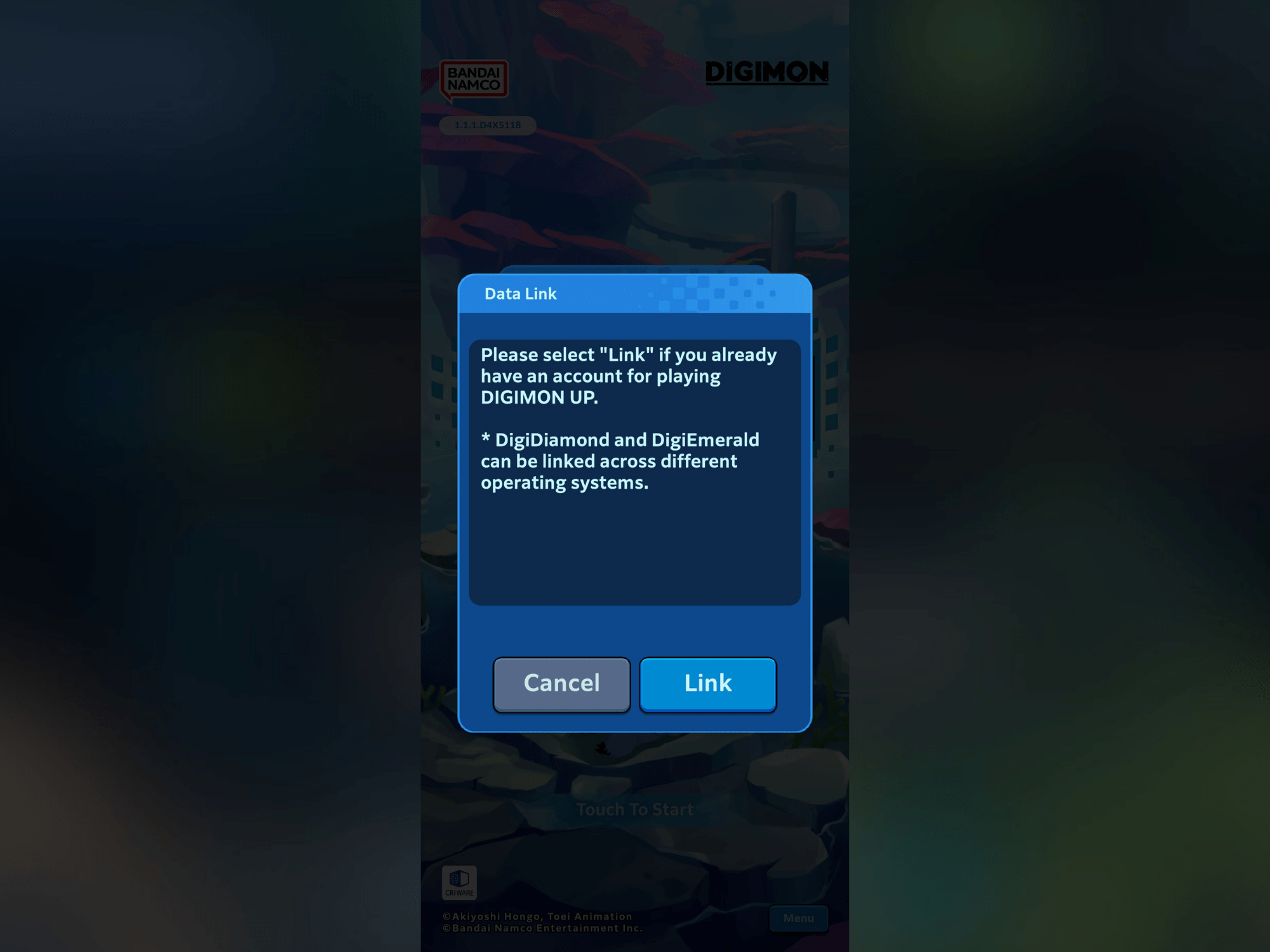
After opening Data Link, the game will display the following message:
Please select “Link” if you already have an account for playing DIGIMON UP. *DigiDiamond and DigiEmerald can be linked across different operating systems.
Select the Link button to continue.
4. Log In to Your Existing Account
You will be redirected to the account login page. Sign in using the same account details previously linked to your original Digimon UP game data.
Make sure you are using the correct account before proceeding.
5. Confirm Your Original Game Data
After logging in, Digimon UP will display the game data currently connected to your account:
Confirm Data Link: The following game data is linked to an account that is logged in. Link this game data? User ID: ??? Player Level: ??? Player Name: ???
Carefully check the User ID, player level, and player name. These details should match the Digimon UP account you want to transfer.

If everything is correct, press Link and a final confirmation will appear again. Click the Link again to begin transferring your existing game data to the new device.

Confirm That the Transfer Was Successful
Once the transfer is complete, enter the game and check your player name, level, Digimon, items, and other progress.

Only uninstall Digimon UP from your old phone after confirming that the correct account has loaded successfully on the new device.
Remember: if the game asks whether you want to Remove Link, cancel the process and return to the title screen. Always use Data Link > Link when transferring existing Digimon UP progress.