Many Digimon UP players on Android are currently unable to play the game after encountering a security warning that immediately closes the app.
The complete error message reads: “This app will be terminated because a security policy violation has been detected. [Code:00000038]”
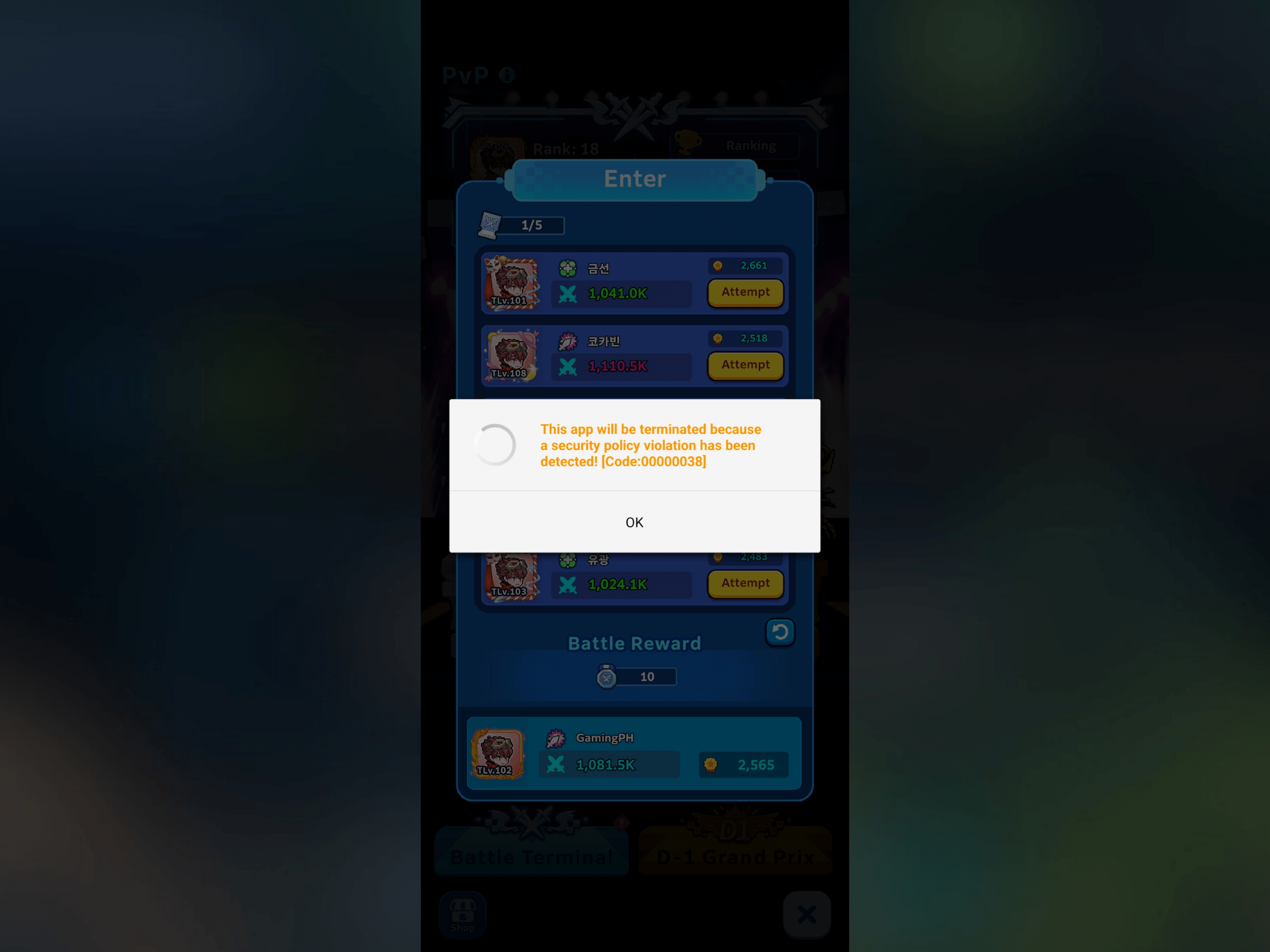
The error appears even for legitimate players who are using unmodified and non-rooted devices. While Digimon UP’s security system may be intended to prevent cheating, it appears to be catching regular Android users in the crossfire.
What Causes Error Code 00000038?
The exact cause has not yet been officially confirmed. However, reports suggest that Digimon UP’s security system may be detecting built-in gaming features as unauthorized software.
Many Android phones include pre-installed gaming tools such as:
- Game Optimizer or Game Booster
- Game Launcher or Game Space
- Game Turbo
- Ultra Game Mode
- Armoury Crate or Game Genie
- Performance monitors and gaming overlays
These tools can optimize performance, manage memory, display the frame rate, record gameplay, or add an overlay while a game is running. Digimon UP’s anti-cheat system may incorrectly identify some of these functions as tools that modify or interfere with the game.
Similar Bandai Namco security warnings can also be triggered by rooted devices, auto-clickers, app-cloning features, secure folders, private spaces, automation tools, and certain security applications. However, this does not confirm the specific cause of Code 00000038 in Digimon UP.
How to Fix Digimon UP Error Code 00000038
There is currently no guaranteed fix, especially when the suspected gaming application is permanently installed as part of the phone’s operating system. However, affected players can try the following temporary solutions.
1. Disable the Phone’s Gaming Features
Open your phone’s Game Booster, Game Space, Game Turbo, or similar application and remove Digimon UP from its list of optimized games.
You should also disable features such as:
- Floating gaming toolbars
- FPS or performance monitors
- Touch-assistance tools
- Macros or automatic actions
- Crosshair overlays
- Automatic screen recording
- Memory and performance enhancement
Restart the phone afterward before opening Digimon UP again.
2. Close Applications Running in the Background
Completely close auto-clickers, screen overlays, app-cloning tools, parallel-space applications, debugging tools, and other programs that could interact with the game.
Disabling an application temporarily may be enough if it cannot be uninstalled from the device.
3. Turn Off Developer Options or USB Debugging
If Developer Options or USB Debugging are enabled on your phone, try turning off both and restart the device.
This setting is not confirmed to cause Code 00000038, but some mobile security systems may treat debugging features or developer options as a potential risk.
Do Not Uninstall or Clear the Game’s Data Without Linking Your Account
Before reinstalling Digimon UP or clearing its storage, make sure your current game progress is properly linked to an account.
Digimon UP automatically creates new game data when installed on another device. Attempting to link an account incorrectly could replace the original progress with the newly created game data.
If you have not linked your account or cannot access the game because of Code 00000038, it may be safer to wait for an official fix instead of reinstalling the application.
A Developer-Side Fix May Be Required
Because gaming optimizers are built into many Android phones and cannot always be uninstalled, affected players may be unable to resolve the issue themselves. Digimon UP’s developers may need to adjust the game’s security detection so that legitimate system applications are no longer flagged.
As of August 3, 2026, the official Digimon UP website has not posted a notice specifically addressing Error Code 00000038. Players experiencing the issue should take a screenshot and report their phone model, Android version, error code, and installed gaming features through Bandai Namco’s support channels.